
Introduction
Ask any writer and they will agree that producing good writing presents challenges. Ask that same writer what it takes to produce great writing and they will likely tell you it represents the apex of the artform. It is a goal all writers strive for. One may not think of office workers at an insurance company, for example, as a group of writers, but they are. In fact, most of the people reading this article are also writers even if they don’t consider themselves as such. While we may not write novels, magazines, or newspaper articles, we write texts, instant messages, and emails daily. Modern writing often flows directly from an idea in our minds to the recipient’s inbox without a second thought. Sent. One less task to worry about. I’m guilty of sending those kinds of error-addled messages myself. Other than a web browser or word processor, no editor reviews our written material before it gets bounced through countless servers.
This inevitably leads to poor communication. And in a world where decisions get made quickly and the daily volume of information we consume is staggering, communicating clearly is critical. Working my entire career in client facing roles, I obsess over language and phrasing. Yet other than a couple English classes at Uni, I feel my technical ability as a writer has improved very little. Partly this is because modern professions generally don’t demand good writing and we lack an effective feedback loop. A Word processor may highlight a grammatical inconsistency to the user but two clicks later, we mindlessly accept the correction and move on.
Article Topic
In this article I wanted to provide a guide for building your own personal editor with Blue AI that will both improve sentence structure and clarity, while also training you to write better without assistance. Even if a leadership or senior leadership position within a company is not a personal career goal, communicating clearly with others is important. This article will also cover a key piece in building future apps by leveraging an outside LLM via a called API. Let’s get into it.
Sola’s Blue AI Pricing
The free version of Blue AI provides users 2 high-level builds and 12 standard builds weekly. For new users looking to better understand Blue as a platform, the Starter Plan (Free) is more than generous. Users receive 2x the AI Build quota in the first 7 days, and it even allows the use of API keys and backups. Visit Blue AI’s Pricing page for more information.
Choose an LLM; Generate an API Key
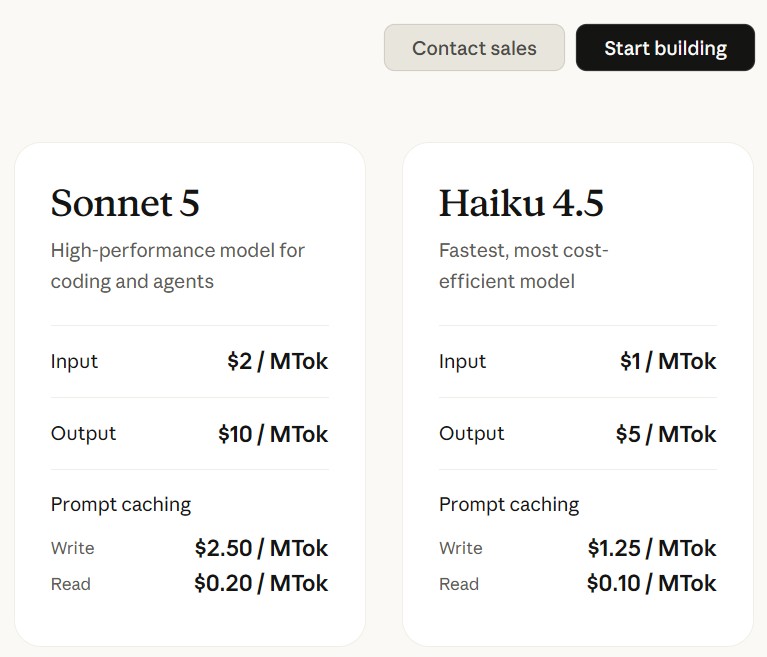
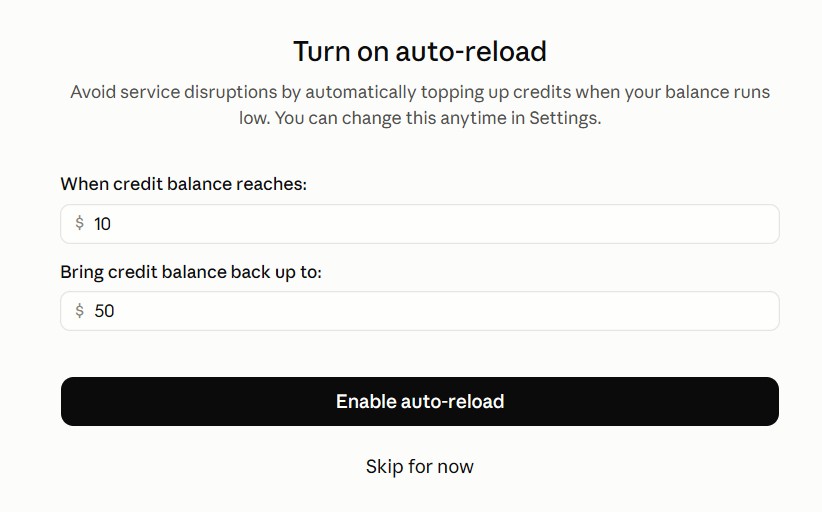
To call an outside LLM via an API (Application Programmable Interface) key, we must first choose an LLM to work with. For this application I chose Claude, hoping to use either the Sonnet 5 or Haiku 4.5 model. I made this decision largely out of budgetary constraints and an assumption that my LLM tasking will be uncomplicated. Under Claude’s Pricing API Page, click Start building and follow the prompts to reach the API dashboard. At this point, users will need to input credit card or banking information to purchase an initial batch of API token credits. I selected a funding amount of 20 USD with no auto-reload. Again, this decision came from wanting to better control future costs as I use the Blue AI generated app.
Once at the Claude API dashboard, click Get API key at the top to generate your API key that Blue AI will use to call Claude. Remember to securely store the key as the initial splash screen is the only time users see it. Generating a new API key in the event of loss or compromise will void the original.
For users looking for a secure storage location, consider Sola of America, Inc’s Password Manager accoca. Accoca offers encrypted, local, sensitive data storage of all types.
Loading API into Blue AI
From the Blue AI dashboard, click the username in the bottom left to reveal additional options, then click Settings. Navigate to Integrations and scroll to the bottom until you see Secret Name (ENV Syle) and the Secret Value fields. Blue AI will have difficulty effectively implementing your secret API if the formatting is not correct. Consult your LLM’s API documentation for further assistance. In many cases, asking the LLM directly can yield good results. Since I’m using Claude, my secret key ENV naming convention was: ANTHROPIC_API_KEY. Paste your unique API key into the Secret Value box and click Save Secret. Blue AI then logs the date and time the key was updated while simultaneously masking the value.
With the secret key stored, navigate back to AI Build under Other on the left-navigation menu. Note: Never share your secret API key with anyone and do not post it online. API keys provide direct access to data linked to that user and are highly sensitive in nature.
Blue AI App Generation Prompt
Below is the text prompt provided to Blue AI for building this editor app. Due to the anticipated complexity, I changed the build quality from Standard to High to ensure accuracy.
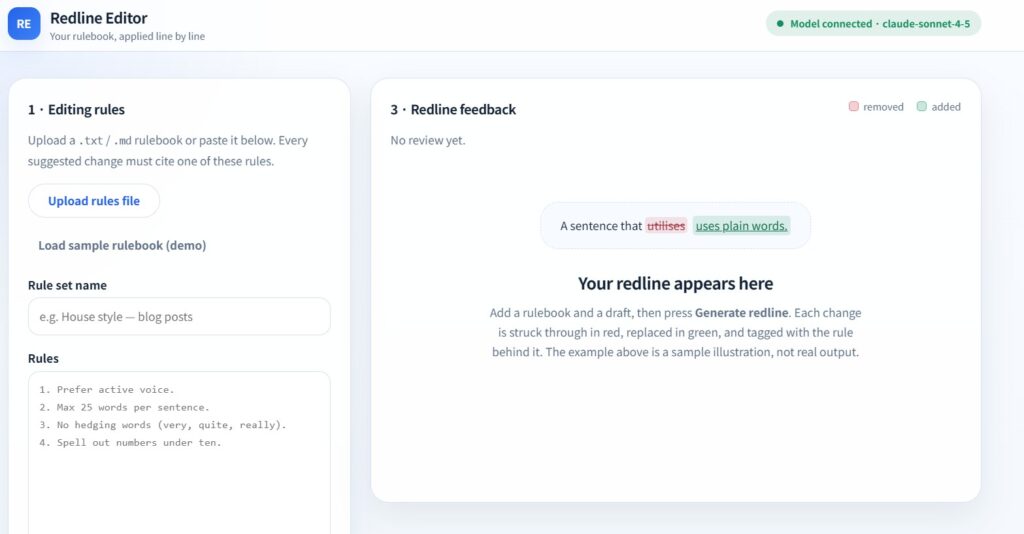
[Create an app that will call on stored Anthropic API Key. The purpose of this app is to allow users to upload a set of editing rules for a written text, for example, a web article. The app will then use the called LLM and apply the uploaded rules to provide editing feedback to the user on the written material in a redline format. Redline format means the output will show the user’s original sentences and suggested edits, highlighting changes sourced from the reference rules so the user can improve their writing skills.]
The Result
At first glance, Blue automatically set Claude’s API call to the Sonnet 4-5 model. In the next article I will look at editing the code to specify using Haiku 4.5, where possible, to reduce token burn. Under the ruleset box in the deployed app I uploaded writing rules from William Stunk’s Elements of Style. It is important to note, the copy from Gutenberg is for use of anyone in the United States and most other parts of the world at no cost, subject to the Project Gutenberg License. Please review the license and until you understand it, limit yourself only to personal use and development—no commercial use.
Works Cited: Strunk, William. The Elements of Style. Project Gutenberg, 18 Aug. 2011, www.gutenberg.org/ebooks/37134.
Conclusion
This article is already too lengthy. I tested the app with a sample, wordily written email. The app performed flawlessly, correctly citing Stunk’s rules for writing. There were several initial errors requiring settings adjustments which I will detail in the next article. The largest initial hurdle stemmed from Blue AI’s default to leave generated apps in a sandbox format. This means they will not connect externally, including to APIs, without the user first granting permission. This and many other features can be easily adjusted in Blue AI’s console.
Please use the bracketed generation prompt (above) to try and recreate this Redline Editor app for yourself. I am beyond impressed with Blue AI as a platform and look forward to exploring more!